
Display the PDF
Using ShortCode
From your admin dashboard, click on Add New PDF under the PDF Poster menu. Then upload a PDF file or enter the PDF file URL to get started.
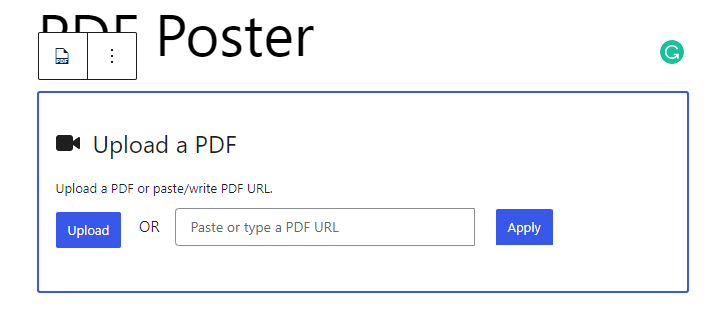
PDF Poster – Gutenberg Insert PDF
After adding the PDF file, you will see the settings on the right sidebar like Gutenberg. Copy the shortcode. (You can also copy the shortcode after published). Now, publish/save the post.
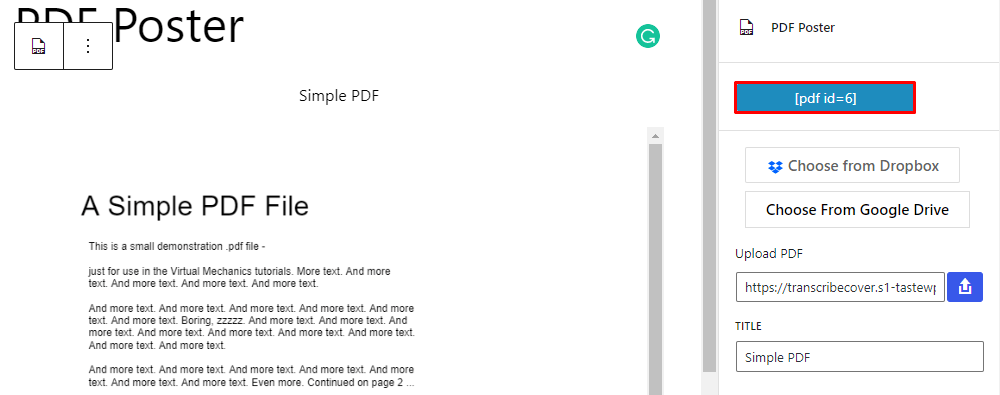
PDF Poster – Gutenberg Copy ShortCode
Paste the shortcode in the post, page, or text widget content. Save and view the content, you will see a PDF file embedded with PDF Poster.
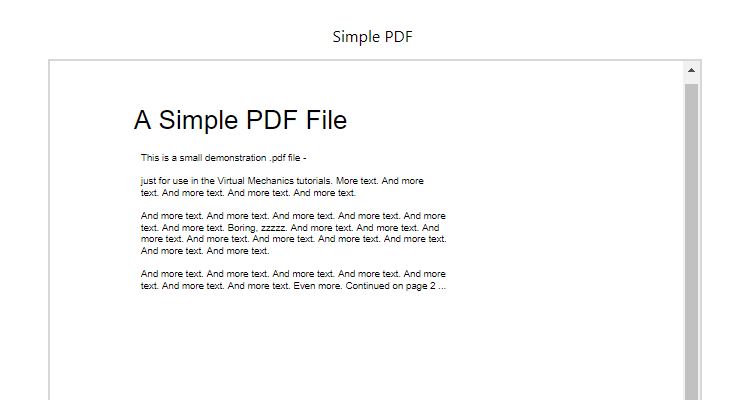
Using Gutenberg
Go to your Gutenberg Editor. Insert PDF Poster block.
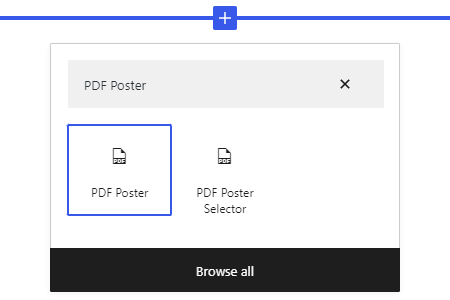
PDF Poster – Gutenberg Add Block
After selecting the block. Insert the PDF file the same way as ShortCode. Change the settings from the sidebar if you need.
Configure the block like a Gutenberg ShortCode.
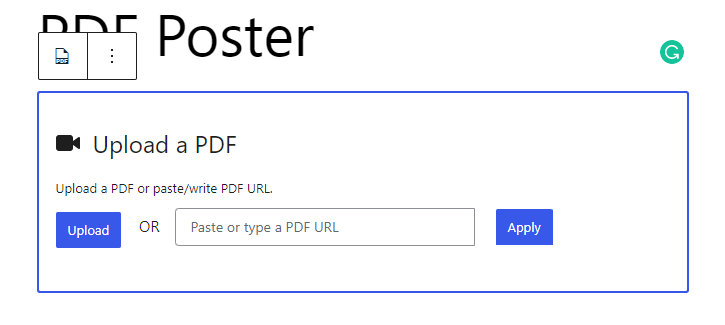
PDF Poster – Gutenberg Insert PDF
Save and view the content, you will see a PDF file embedded with PDF Poster.
There is another block called PDF Poster Selector. This block is used to select shortcode-generated PDF Posters.