
Elementor
First, install the Elementor plugin to use Elementor widgets of HTML5 Video Player. On the Elementor editing page, you will see the HTML5 Video Player. Insert the Player.
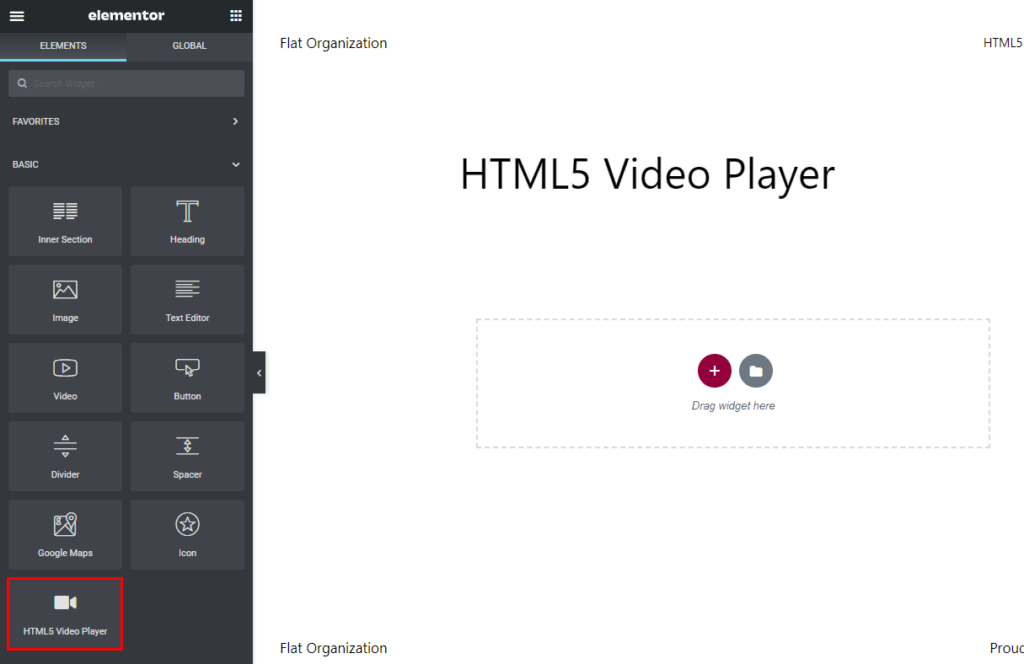
HTML5 Video Player- Elementor Player
Sources
Select a Video Source. There are 3 types of Video Sources(Library, Youtube, and Vimeo). Add a Video File or insert a Video URL. Also, can add a Poster for the video.
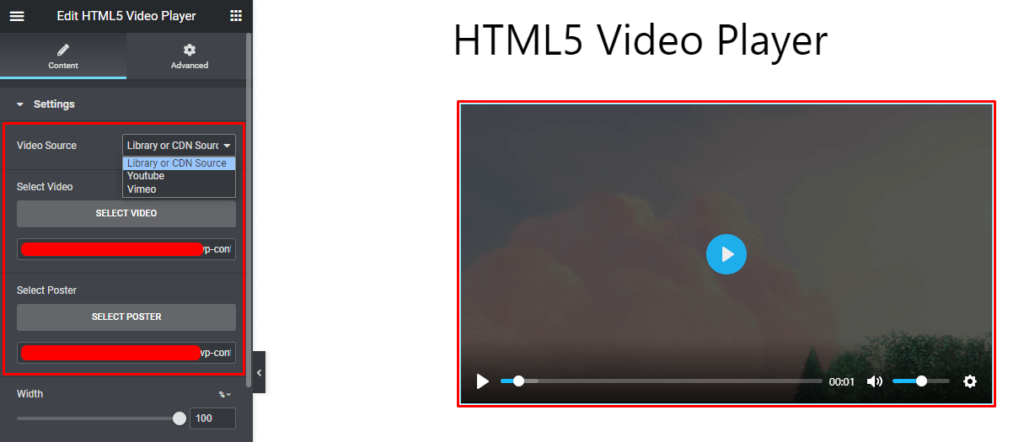
HTML5 Video Player- Elementor Sources
Options
Below the sources, you will see the options for the Player.
- Set Width, Seek Time, Start Time, and Preload Type.
- Enable/disable Repeat, Muted, Autoplay, Sticky On Scroll, Popup, Pause, Reset On End, Auto Hide Control, and Password Protected.
- Enter Google VAST TagURL.
For the Password Protected, enter the Password and Password Protected Text.
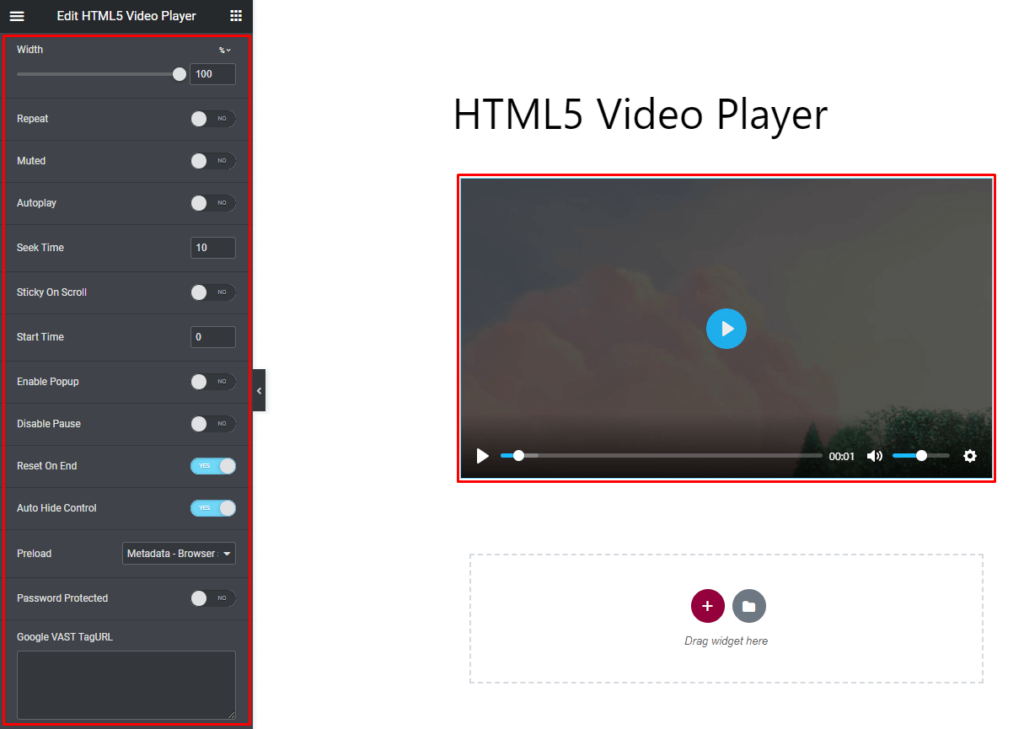
HTML5 Video Player- Elementor Options
Controls
In controls show/hide the video player controls like Play Large, Restart, Rewind, Play, Fast Forward, Progress, Current Time, Duration, Mute, Volume, Settings, PIP, Airplay, Full Screen, Download, and Controls Shadow.
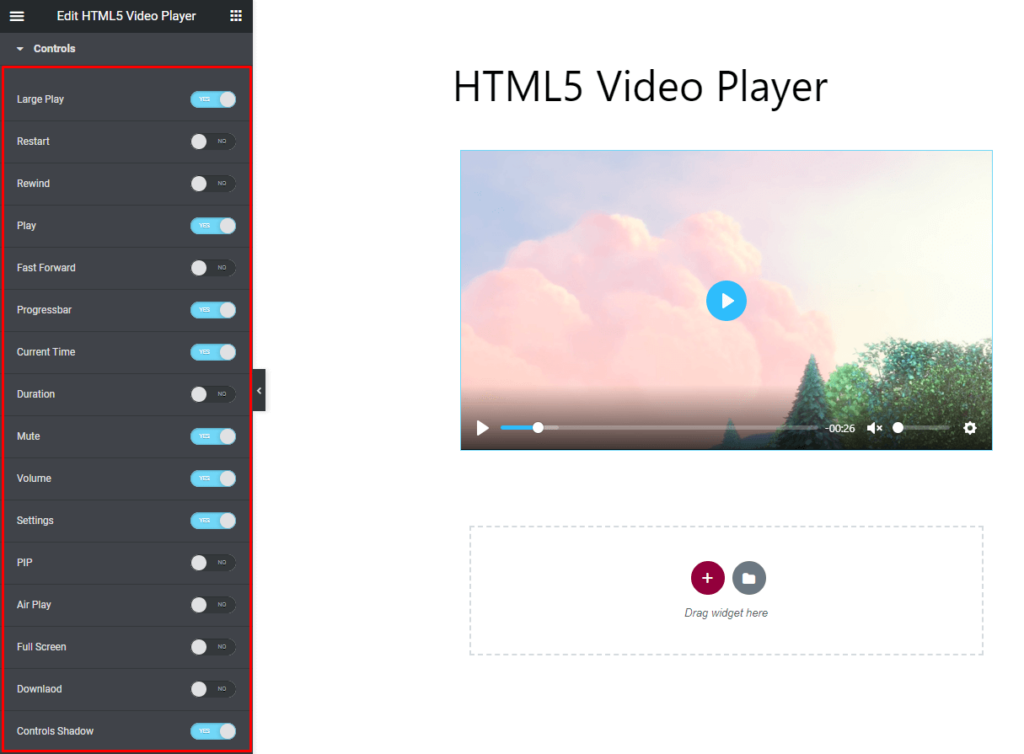
HTML5 Video Player- Elementor Controls
Branding
Add Branding Logo or Text, and set the Distance from the top and left. For the text set Color, Hover Color, and Font Size.
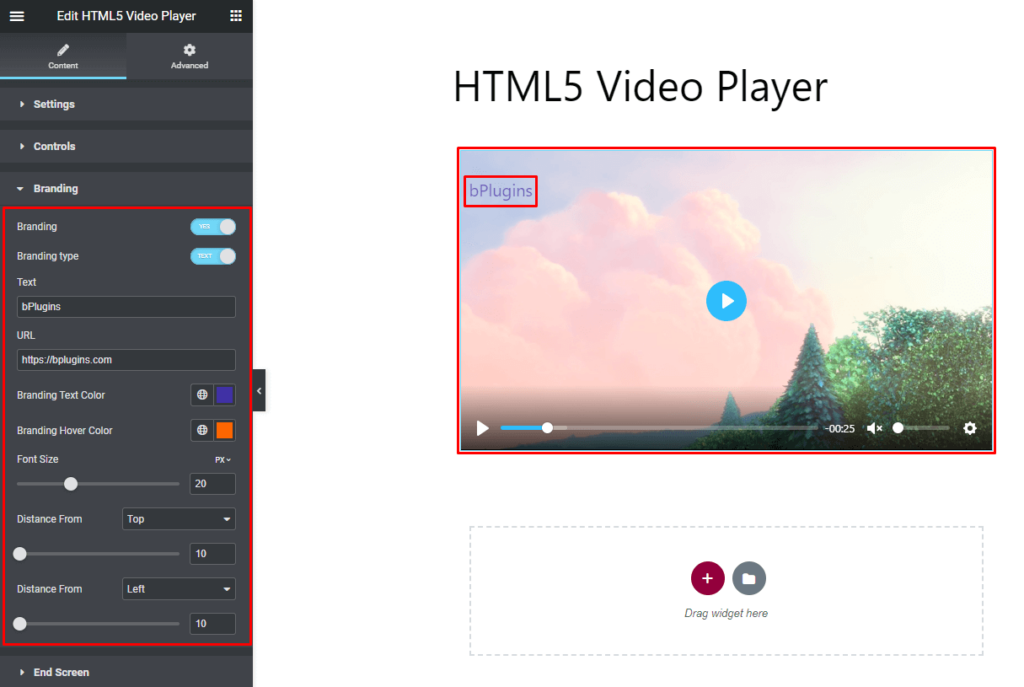
HTML5 Video Player- Elementor Branding
End Screen
To display text at the end of the video, enable End Screen, and set Text, URL, and Text Color.
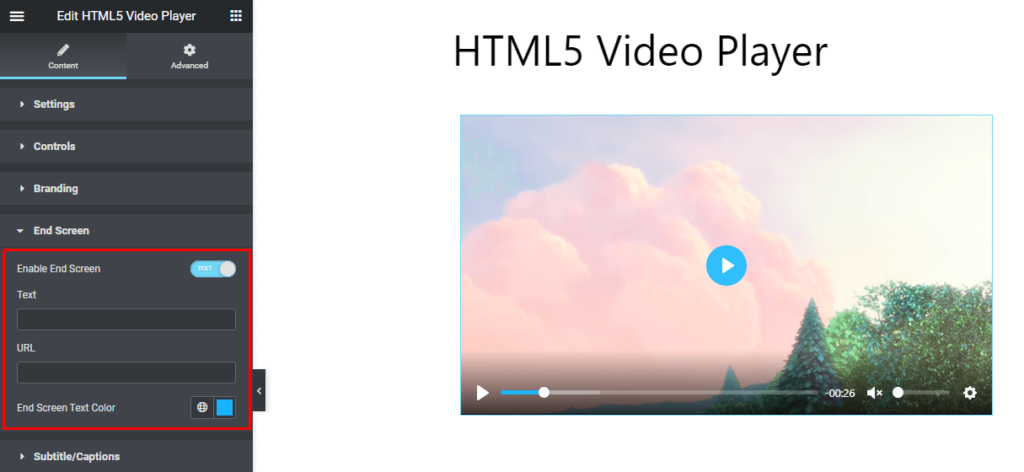
HTML5 Video Player- Elementor End Screen
Captions
Add and set different captions for the video.
Caption enabled by default. This is an experimental option.
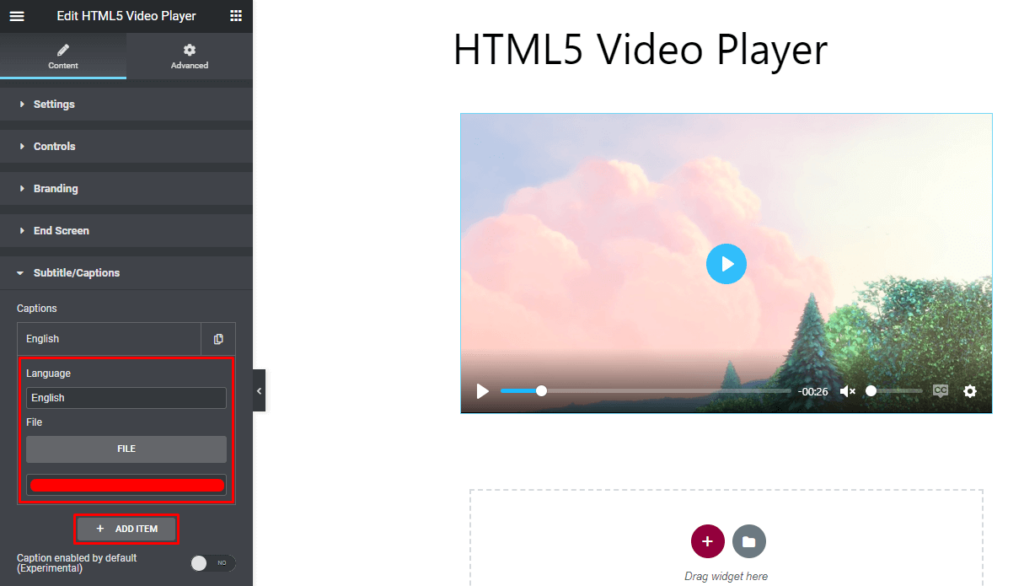
HTML5 Video Player- Elementor Captions
Quality
Add different video quality. Add a different video for different quality.
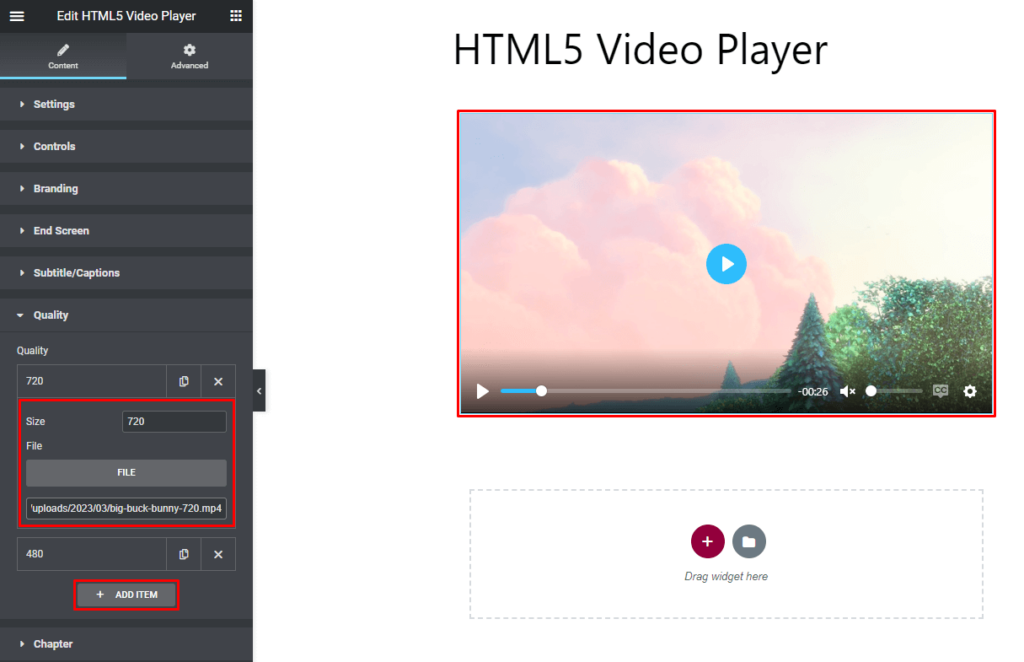
HTML5 Video Player- Elementor Quality
Chapter
Add different Chapters for the video.
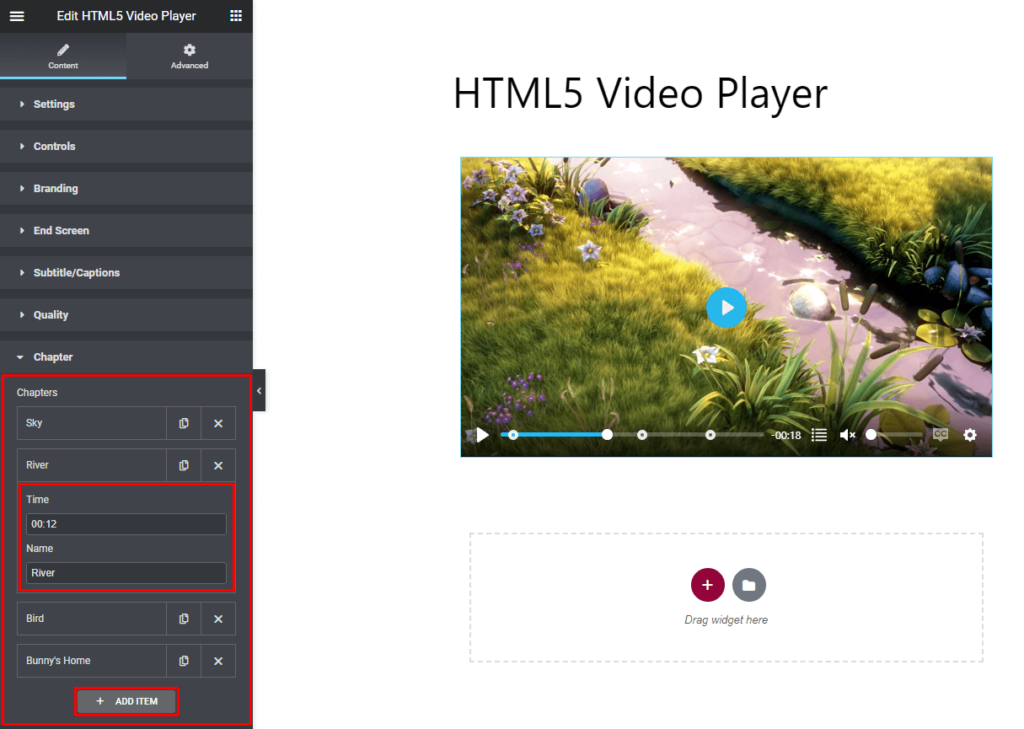
HTML5 Video Player- Elementor Chapter