
Gutenberg
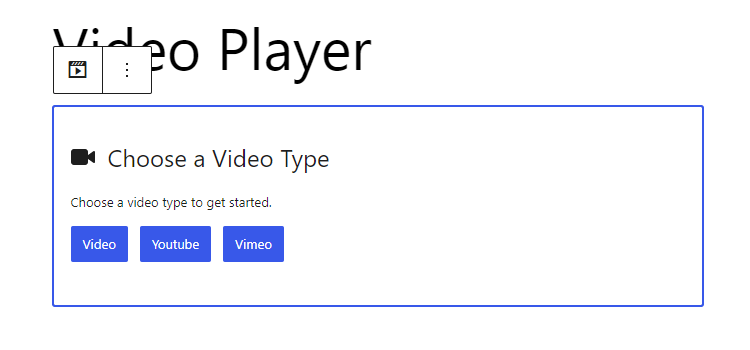
Add a video player from Html5 Video Player > Add New Player. You will see the player in the Gutenberg editor.
First, select a video type: Video, YouTube, or Vimeo. For Video upload Video or insert Video URL, for Youtube insert Youtube video URL, for Vimeo insert Vimeo video URL.
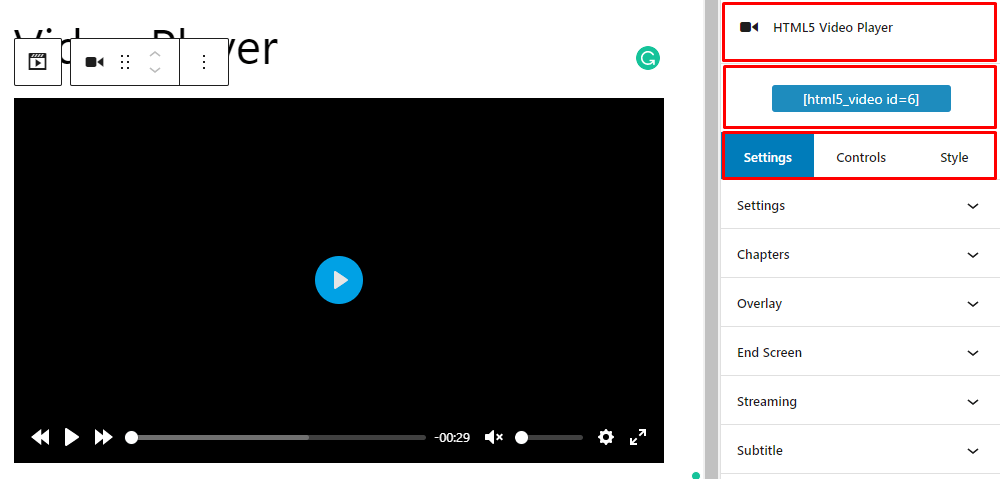
Sidebar settings
Select the block, you will see the settings option in the right sidebar. There are three options, Settings, Controls, and Style.
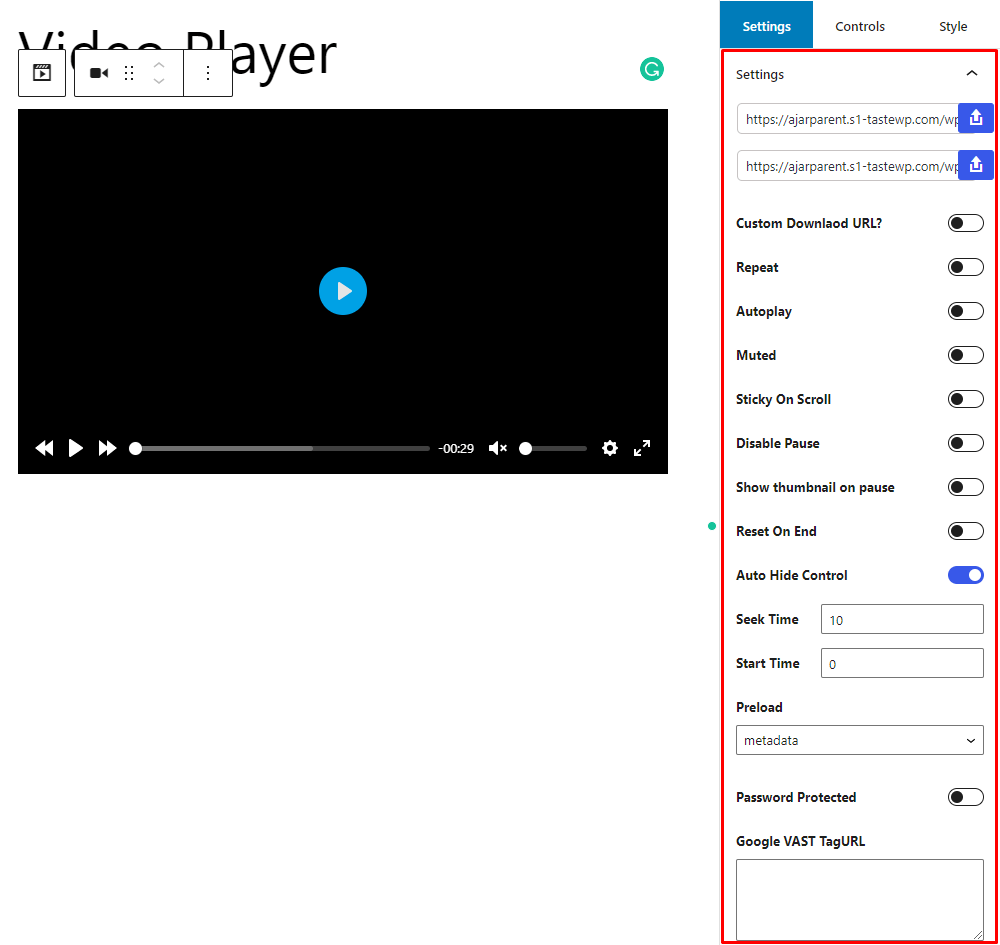
Settings
Sources: You can set video and poster, and also can set the download URL by enabling the Custom Download URL option.
Options: Enable or disable Repeat, Autoplay, Muted, Sticky On Scroll, Pause, Reset On End, Auto Hide Control, Show or hide thumbnail on pause. And set Seek Time, Start Time, Preload, Password Protected, and Google VAST Tag URL.
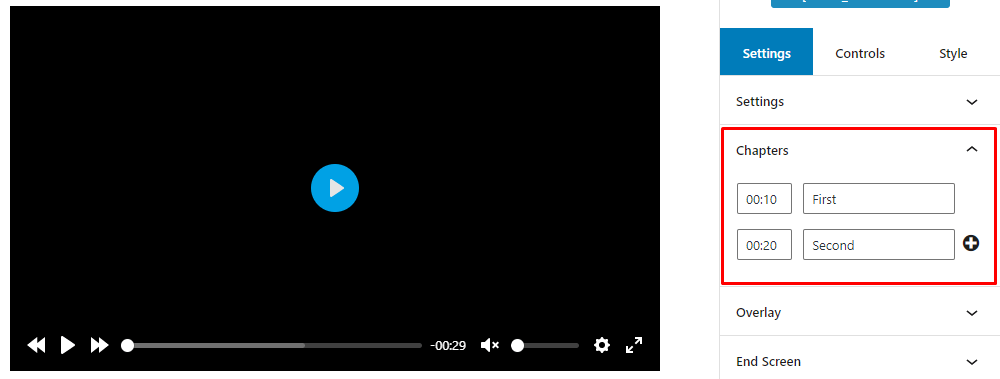
Chapters
Set different chapters for the video from here.
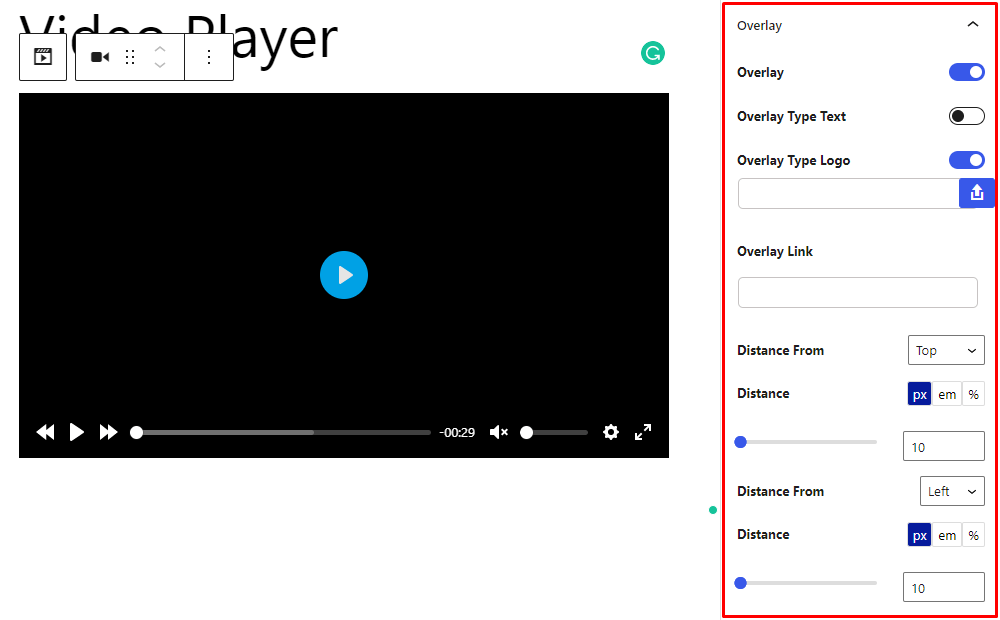
Overlay
Add branding logo or text on video overlay. Also, set the position of overlay content.
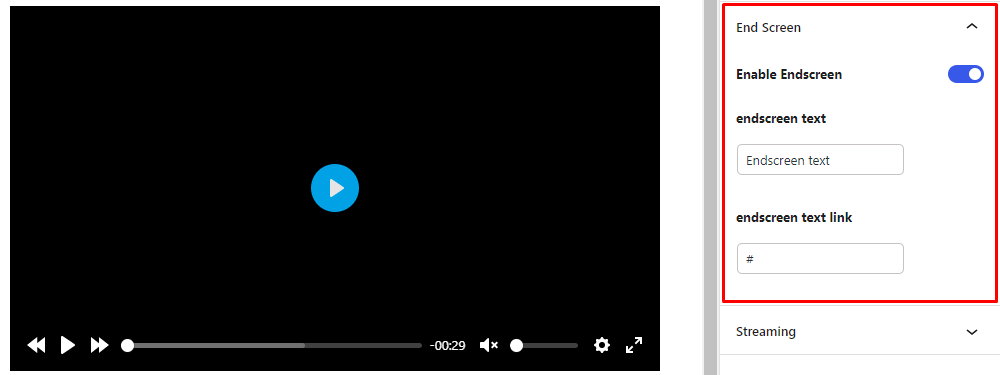
End Screen
By enabling this show text or anchor text after the video ends.
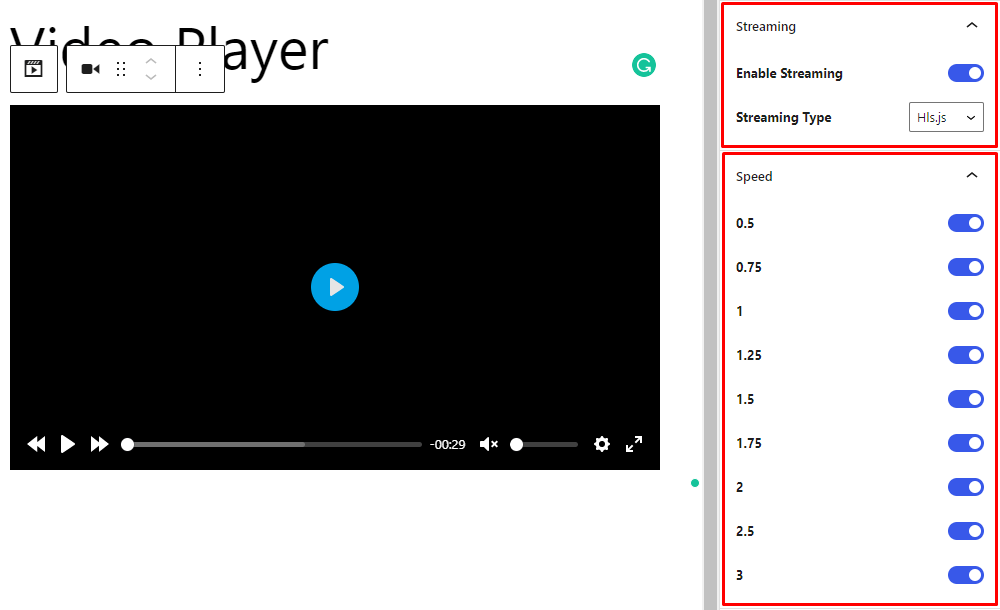
HTML5 Video Player- Gutenberg ShortCode Streaming & Speed
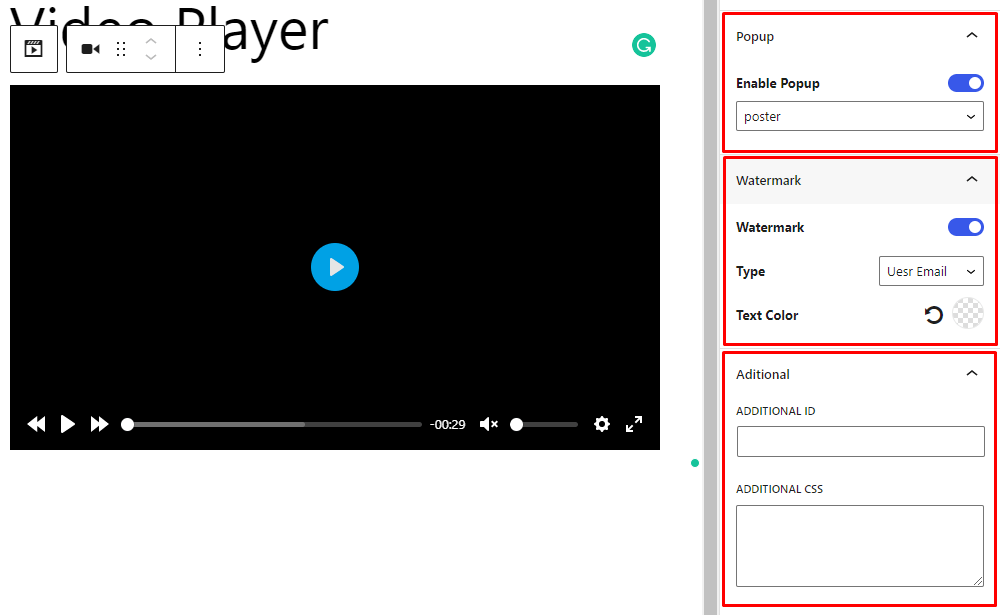
Popup, Watermark & Additional
Popup: Enable to play video in a popup by clicking a poster or button.
Watermark: Show a watermark when playing, like user email, name, or custom text, and color it.
Additional: Add Player ID, and add additional CSS.
HTML5 Video Player- Gutenberg ShortCode Popup, Watermark & Additional
Controls
Go to the Controls tab beside the Settings tab. From here you can show/hide the video player controls like Play Large, Restart, Rewind, Play, Fast Forward, Progress, Current Time, Duration, Mute, Volume, PIP, Airplay, Settings, Download, and Fullscreen.
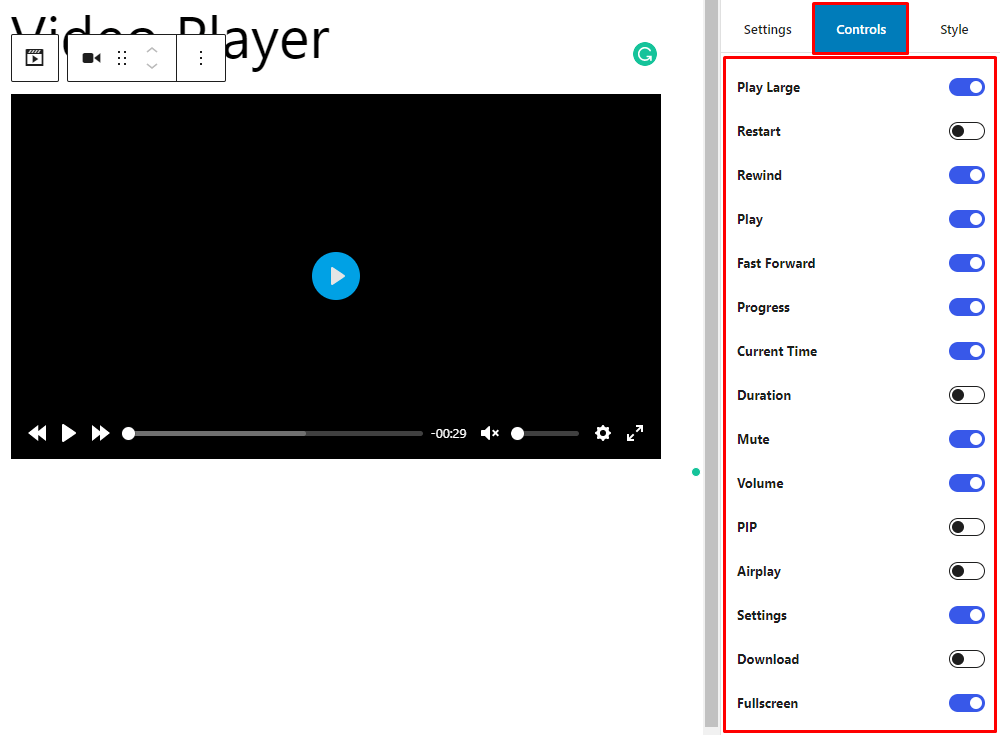
HTML5 Video Player- Gutenberg ShortCode Controls
Style
Go to the Style tab beside the Controls tab to set the width and rounded corner value of the video player.
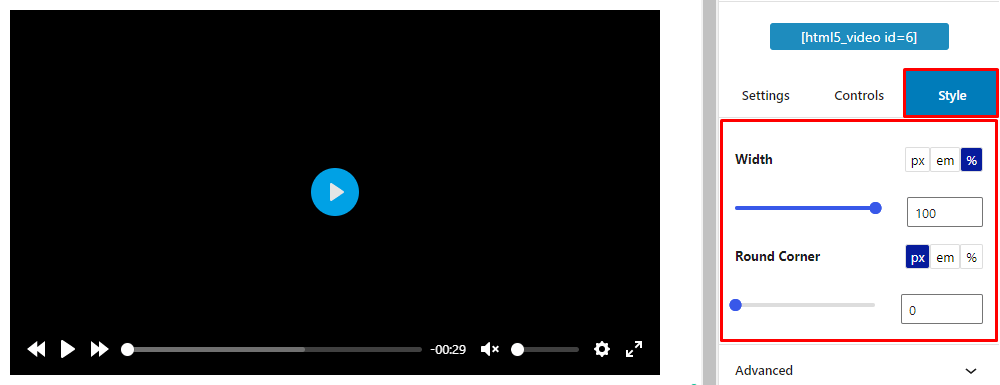
HTML5 Video Player- Gutenberg ShortCode Style
ShortCode Classic
First, disable Gutenberg Shortcode Generator to enable Classic Editor. After setup, add or edit Player from the Html5 Video Player menu. Here you will find the settings for the player:
- Configure Video Player
- Controls, Branding & End Screen
After all the settings save the player, copy and paste the shortcode where you want to show the player.
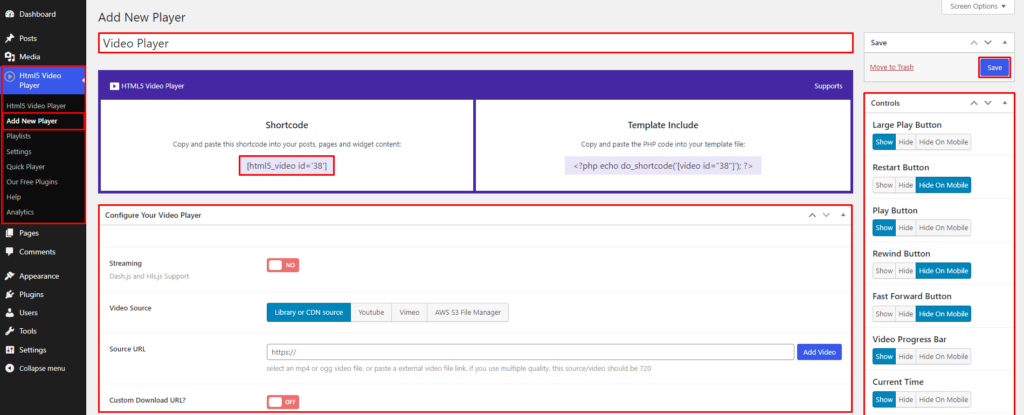
HTML5 Video Player- Classic ShortCode
ShortCode Classic- Configure
There are various options to configure the video player!
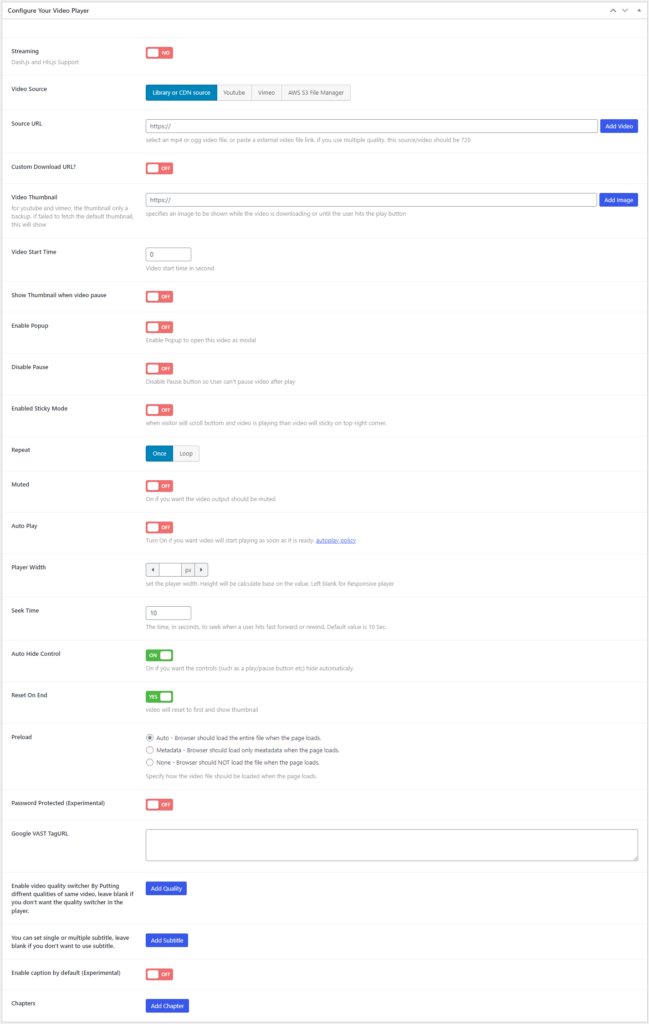
HTML5 Video Player- Classic ShortCode Configure
Sources
Select a video source: Library or CDN source, YouTube, Vimeo, or from AWS S3 File Manager
Set video and thumbnail sources. Also, set the download URL by enabling the Custom Download URL option if want a custom file download.
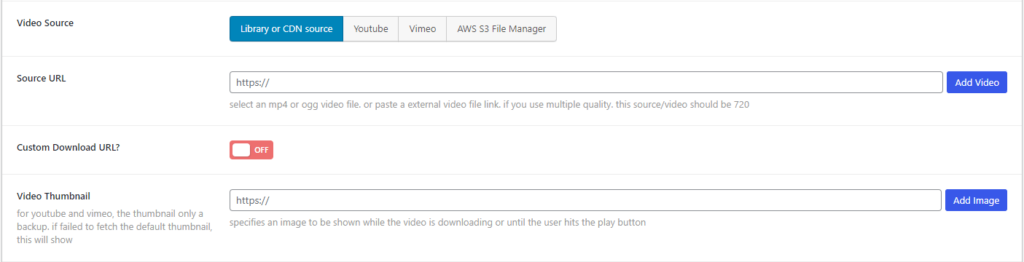
HTML5 Video Player- Classic ShortCode Configure Streaming
Options
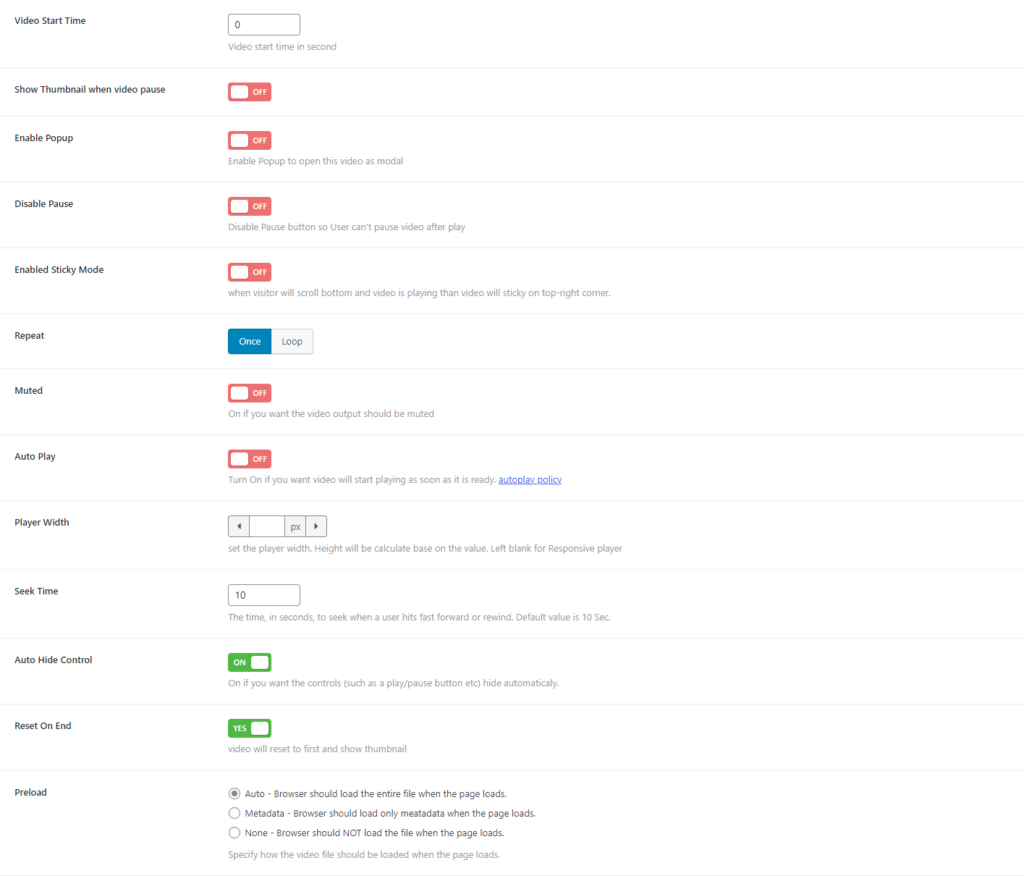
Under the sources you will see the options:
- Video Start Time – set a starting time for the video
- Enable Thumbnail when video pause – to display the thumbnail when the video is paused.
- Enable Popup – enable Popup to open this video as a modal.
- Disable Popup – the user can’t pause the video if this option is enabled.
- Enabled Sticky Mode – when a visitor will scroll to the bottom and the video is playing, the video will be sticky in the top-right corner.
- Repeat – two options are available. Once or Loop. You can choose according to your needs.
- Muted – enable if you want the video muted.
- Auto Play – enable if you want video will start playing as soon as it is ready. autoplay policy.
- Player Width – set the player width. Height will be calculated base on the value. Left blank for Responsive player.
- Seek Time – The time, in seconds, to seek when a user hits fast forward or rewind. The default value is 10 Sec.
- Auto Hide Control – enable if you want the controls (such as a play/pause button, etc) to hide automatically.
- Reset On End – the video will reset to first and show a thumbnail at end of the video.
- Preload – specify how the video file should be loaded when the page loads.
Password Protected & Google Vast Tag URL
Enable Password Protected and set the password, and set text message to the users.
Also, you can set Google Vast Tag URL
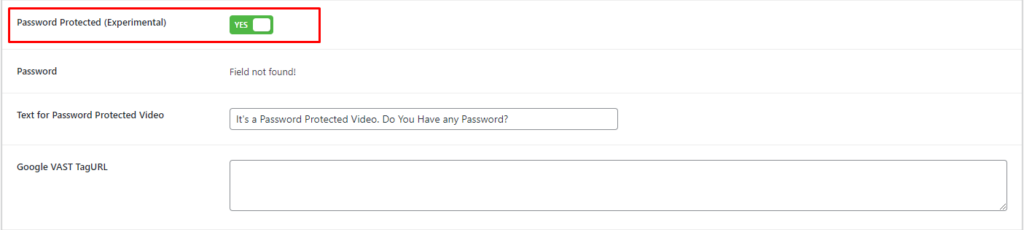
HTML5 Video Player- Classic ShortCode Configure Password Protected & Google Vast
Video Quality
Set video quality, you have to upload different videos of different video.
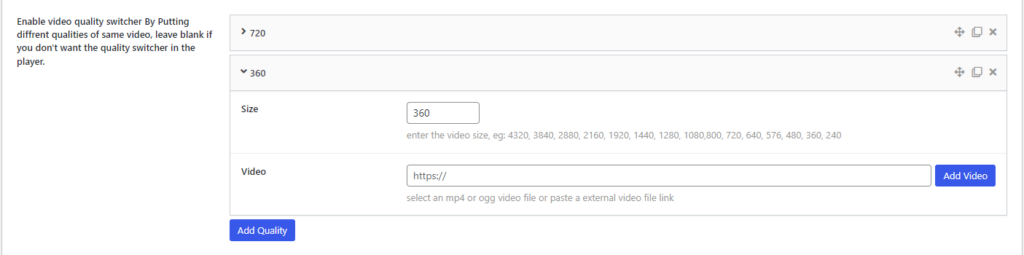
HTML5 Video Player- Classic ShortCode Configure Video Quality
Subtitle
Enter the language and upload a .vtt file for video subtitles.
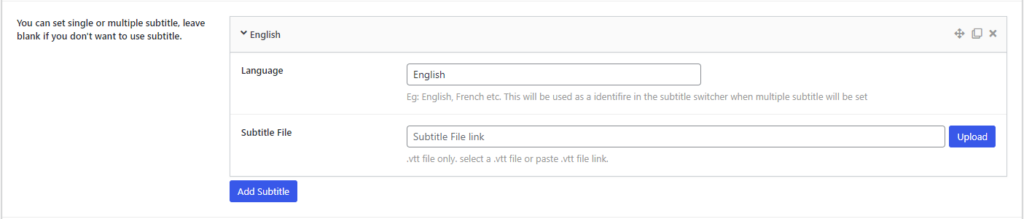
HTML5 Video Player- Classic ShortCode Configure Subtitle
Caption & Chapters
Enable caption by default. This is an experimental option.
Set different chapters for the video.
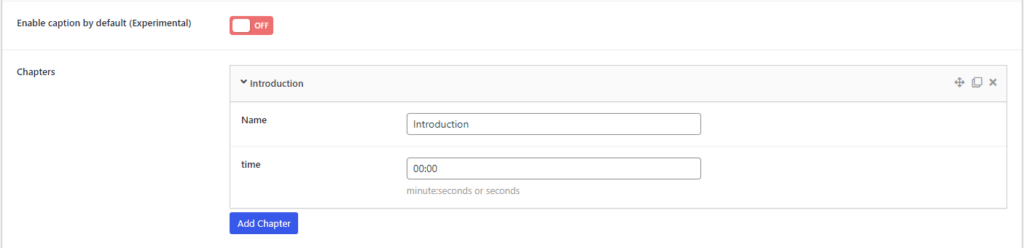
HTML5 Video Player- Classic ShortCode Configure Caption & Chapters
ShortCode Classic- Controls, Branding & End Screen
When you edit the player in the classic editor, there are more settings on the right sidebar. There are Controls, Branding, and End Screen options.
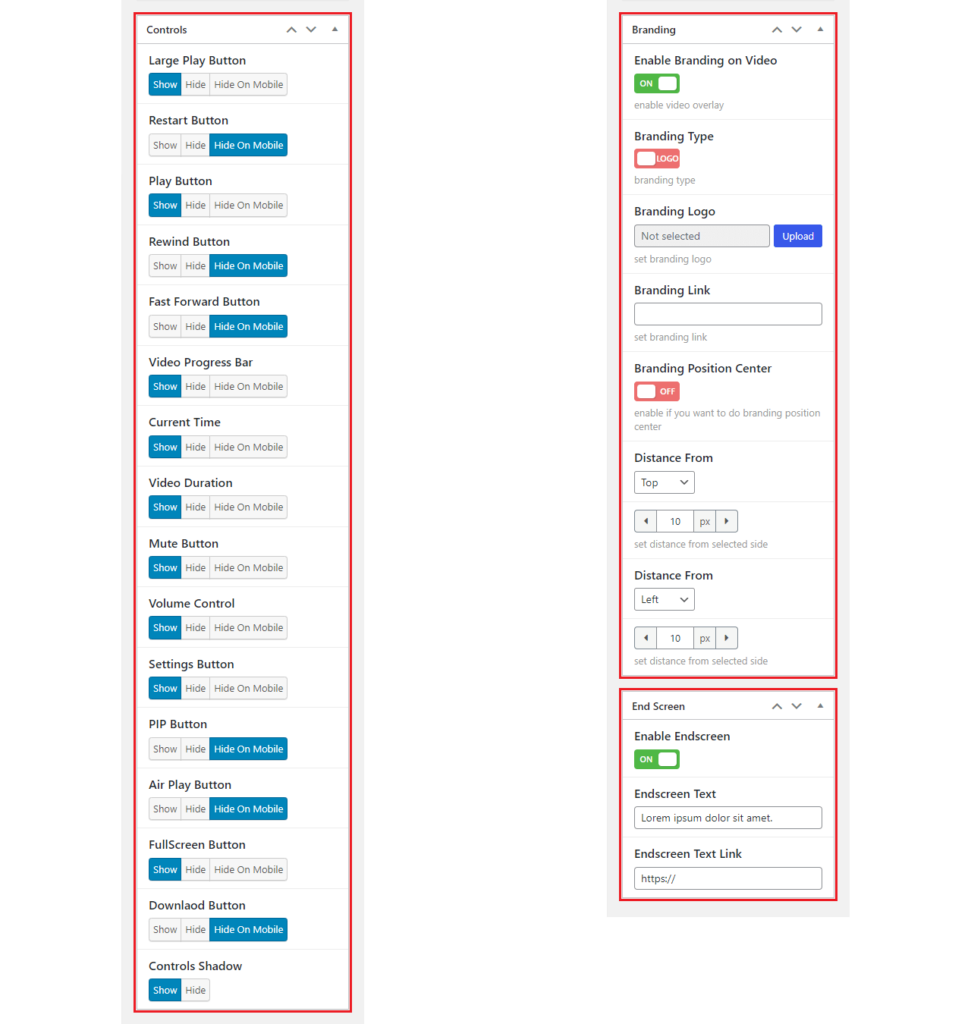
HTML5 Video Player- Classic ShortCode Sidebar
Controls
In Controls, you can show/hide the video player controls like Large Play, Restart, Play, Rewind, Fast Forward, Progress, Current Time, Duration, Mute, Volume, Settings, PIP, Airplay, FullScreen, Download, and Controls Shadow.
Branding
From Branding settings, you can add branding logo or text on video overlay. Also, set the position of overlay content.
End Screen
In End Screen settings, by enabling this show text or anchor text after the video ends.